2 methods to clear DNS cache inside operating system... and Google Chrome

Intro
As a web developer, I adjust the DNS records for my domain names often, especially when it comes to server migration and downtime mitigation.
Modern DNS works efficiently through DNS caching mechanism, to reduce network and improve browser/application response time.
However, when you are changing the A record, DNS cache could be a trouble for you. Of course you can change the TTL (time-to-live) value of the record to a smaller value, to make the cache of DNS records expired in a shorter time.
But how about the client-side? We may clear DNS cache manually.
Time is precious, right? :D

How to clear DNS cache in Windows?
- Press
Win + Xand thenron your keyboard - Enter
ipconfig /flushdnsin the prompt and then pressEnter
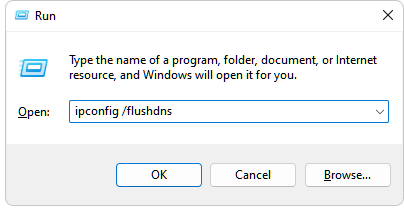
Viola! It is very simple to clear DNS cache in Windows, and also in macOS and Linux.
How to clear DNS cache in Google Chrome?
Google Chrome has its own DNS caching pool. You can only clear it through an internal page.
- Enter
chrome://net-internals/#dnsin Google Chrome address bar. - Press that only button.
- Profit!
How to clear DNS cache in macOS, MacBook and iMac?
- Start the terminal, in your own way (try to ask Siri to do so!)
- Paste
sudo killall -HUP mDNSResponder;sudo killall mDNSResponderHelper;sudo dscacheutil -flushcacheand then pressEnteron your keyboard - Type your password and then press
Enter - Done
How to clear DNS in Ubuntu?
- Start the terminal, in your own hacker-style way!
- Paste
sudo systemd-resolve --flush-cachesand then pressEnter - Type your password and then press
Enter - Done!
